
How to Check Graphics Card Temperature Without Software
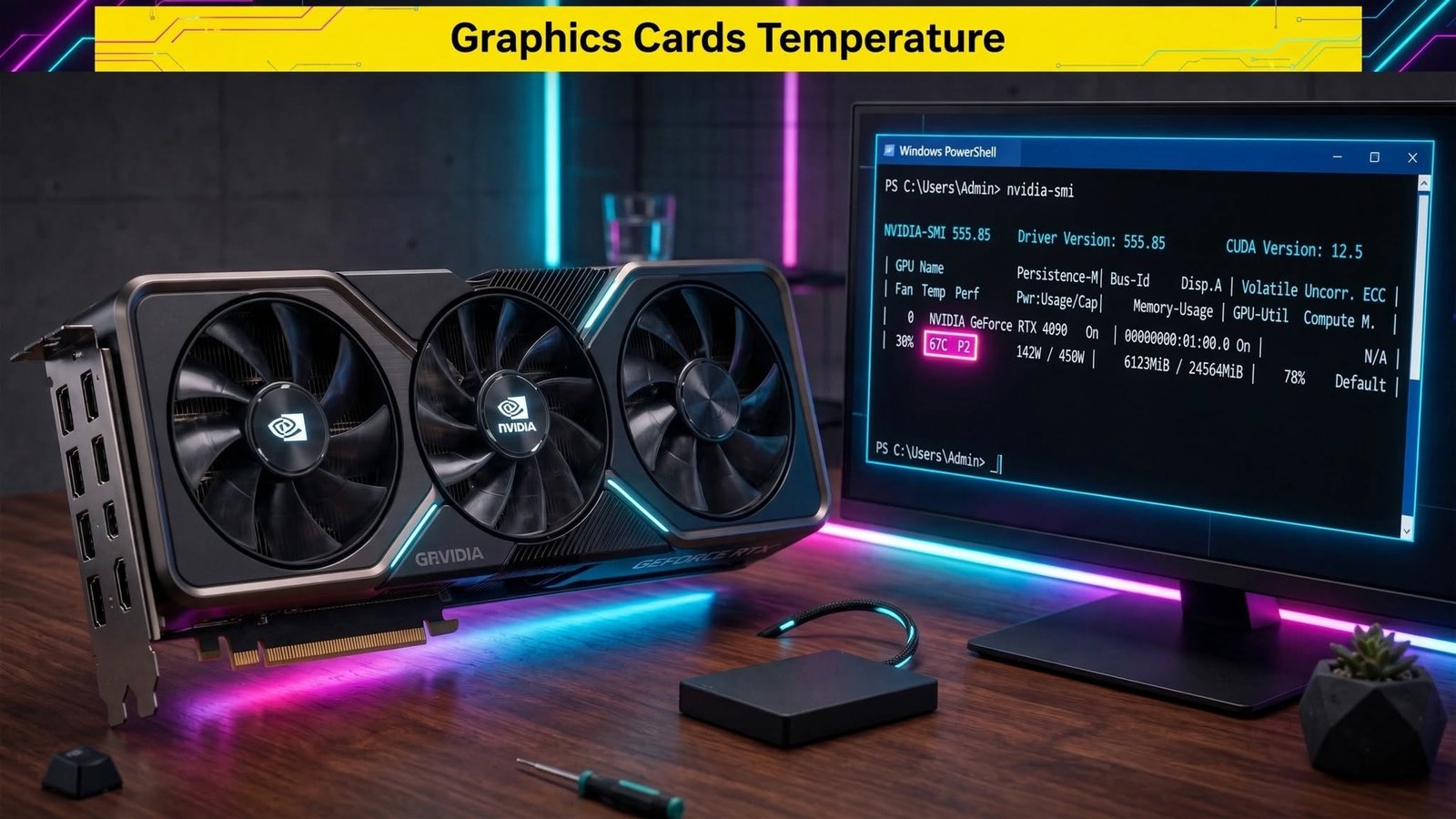
On Windows 10 and 11, open Task Manager with Ctrl + Shift + Esc, select the Performance tab, and click your dedicated GPU. The temperature appears in Celsius near the bottom of the panel or next to the GPU name. NVIDIA users can also run the nvidia-smi command that ships with the graphics driver for the same reading without extra downloads.
Most people only need a quick look at graphics card temperature during gaming, rendering, or when the system feels hot. Windows and NVIDIA drivers already provide that information, so third-party tools are unnecessary for a basic check.
Check GPU Temperature in Windows Task Manager
This method works on Windows 10 (version 2004 and later) and Windows 11 for most dedicated NVIDIA, AMD, and Intel discrete graphics cards. It requires a driver that supports WDDM 2.4 or higher.
- Press Ctrl + Shift + Esc to open Task Manager. If it opens in compact view, click More details.
- Select the Performance tab on the left.
- Click the entry labeled GPU 0, GPU 1, or the name of your graphics card.
- Look for the temperature reading. It appears at the bottom of the right-hand panel under “GPU Temperature” or in parentheses next to the GPU name in the left list.
The value updates in real time and is shown only in Celsius. Integrated graphics (iGPUs) almost never display a temperature here. On dual-GPU laptops the dedicated card may report temperature only while it is under load.
If no temperature appears, update the graphics driver from the manufacturer’s site, then restart. Older drivers or unsupported hardware will simply omit the sensor.
Use nvidia-smi for NVIDIA Cards
NVIDIA’s System Management Interface is installed automatically with the official GeForce or Quadro driver. No separate download is required.
- Open Command Prompt, PowerShell, or Windows Terminal.
- Type
nvidia-smiand press Enter. - The temperature appears in the “Temp” column of the summary table.
For a single clean number, run:
nvidia-smi --query-gpu=temperature.gpu --format=csv,noheaderAdd -l 1 to refresh every second. The same command works on Linux when the proprietary NVIDIA driver is installed.
What the Numbers Mean
Typical ranges for modern dedicated GPUs are:
- Idle / light desktop use: 30–50 °C
- Gaming or heavy load: 65–85 °C
Most NVIDIA cards begin thermal throttling between 83 °C and 90 °C. AMD cards often allow higher junction (hotspot) temperatures, sometimes approaching 100–110 °C by design. Sustained readings above 90 °C on the core temperature warrant checking case airflow, dust, or fan curves.
Task Manager and nvidia-smi report the core or edge temperature. They do not show hotspot, memory junction, or VRM temperatures. Those require additional monitoring tools if you need deeper diagnostics.
Limitations and Quick Troubleshooting
Temperature support is not universal. Integrated graphics rarely expose the sensor to Task Manager. Some older discrete cards and certain laptop designs also omit the reading. In those cases the only built-in option left is nvidia-smi (NVIDIA only) or checking the system BIOS/UEFI on some motherboards.
If the reading is missing after a driver update, confirm the driver model in dxdiag (Win + R → dxdiag → Display tab). WDDM 2.4 or newer is required for Task Manager temperature display.
These two methods give an immediate, software-free answer for the vast majority of desktop and laptop systems with dedicated graphics.




Thanks for the mention, Toggle Menu! We appreciate you sharing our guide on how to check GPU temperatures without extra software. Hope your readers find the steps helpful!