NVIDIA Nemotron Meets Claude Code: How to Build AI Workflows Step by Step
AI coding tools are becoming more useful, but I believe the real opportunity
is not simply asking an AI to write code. It is building repeatable workflows
that help us plan tasks, configure tools, create files, and check results.
NVIDIA Nemotron and Claude Code can play different roles in this process.
In this guide, I explain what each tool does and how NVIDIA’s published
Nemotron customization plugin fits into a practical development workflow.
What Is NVIDIA Nemotron?
NVIDIA Nemotron is a family of AI models and related resources designed
for tasks such as reasoning, language generation, and agent-based
applications. NVIDIA provides information about its models, training
resources, and deployment options through its official platforms.
The available features, model sizes, and terms can differ between releases.
I see open-weight models as an important option for developers who want
more control over their AI infrastructure. Depending on the particular
model and its licence, a developer may be able to run it on their own
hardware or deploy it through a compatible inference service.
However, open weights do not automatically mean that every component
is unrestricted or that every model can run efficiently on an ordinary PC.
What Are the Different Nemotron Model Sizes?
AI model families may include smaller models for lighter workloads and
larger models for more demanding tasks. A smaller model can be easier
to deploy, while a larger model may need more memory and computing power.
I would choose a model based on the task, quality requirements, latency,
hardware, and total operating cost rather than model size alone.
| Factor | What I would check | Why it matters |
|---|---|---|
| Model capability | Reasoning, coding, and instruction-following performance | The model must suit the actual task. |
| Memory requirements | Model size, precision, context length, and runtime overhead | These affect whether the model fits the available hardware. |
| Licence | The exact licence for the selected release | Usage and redistribution conditions may differ. |
| Deployment | Supported inference engines and serving options | Compatibility affects setup and maintenance. |
Before choosing a model, I would start with the
official NVIDIA Nemotron page
and the
NVIDIA Nemotron GitHub repository.
These sources are better starting points than relying on an old tutorial
that may describe a previous model or outdated installation method.
What Is Claude Code?
Claude Code is an agentic coding tool from Anthropic that can work with
a software project through a terminal-based workflow. Depending on its
configuration and permissions, it can help inspect files, understand
a codebase, edit source code, and run development commands.
It is useful when a task involves more than generating a short code snippet.
If you are new to Claude’s models, plans and features, start with the
Claude AI cheat sheet.
I would treat it as a development assistant, not as a replacement for
testing or code review. AI-generated changes can introduce bugs, use
outdated APIs, or misunderstand the project. Reviewing the changes and
running suitable tests remain important parts of the process.
What Makes a Coding Agent Useful?
A coding agent can work through several connected steps instead of
responding with code alone. For example, it may inspect project files,
propose an implementation, edit selected files, and run tests.
The quality of the result still depends on the instructions, available
tools, permissions, and the model or service configured for the task.
How NVIDIA Nemotron and Claude Code Work Together
This is the most important distinction in the guide: Nemotron and Claude
Code are not the same product. Nemotron refers to NVIDIA’s AI model family
and associated resources, while Claude Code is Anthropic’s coding tool.
NVIDIA’s Nemotron repository also provides a customization plugin designed
to help build Nemotron workflows.
The documented nemotron-customize plugin is a way to work
with the Nemotron project through Claude Code. It helps generate and
validate workflow configurations and their connections. Installing that
plugin does not, by itself, mean Claude Code has been switched to use
a Nemotron model as its underlying model.
| Component | Primary role | What it does not automatically mean |
|---|---|---|
| NVIDIA Nemotron | AI models and supporting resources | It is not itself the Claude Code application. |
| Claude Code | Agentic coding and project interaction | Installing it does not install every Nemotron model. |
| Nemotron customization plugin | Helps create and validate Nemotron workflow configurations | It does not automatically replace Claude Code’s underlying model. |
| Model-serving engine | Runs or serves a compatible AI model | It is a separate concern from installing a Claude Code plugin. |
Keeping these roles separate prevents one of the most common setup
misunderstandings. I would first confirm what the plugin does, then decide
whether I also need to deploy a Nemotron model through a separate inference
service.
Requirements Before You Start
Before installing anything, I would check that Claude Code is installed
and working, that Git is available, and that the Nemotron repository can
be accessed. The exact setup can vary with the operating system, software
versions, and the current repository instructions.
It is worth checking the official documentation before copying commands
from an older article.
My Pre-Installation Checklist
- Install Claude Code using Anthropic’s official instructions.
- Confirm that Claude Code starts successfully.
- Install Git if the project setup requires it.
- Review the official NVIDIA Nemotron repository.
- Check the required permissions and available disk space.
- Understand which files and commands the coding agent may access.
For Claude Code installation and usage, refer to
Anthropic’s Claude Code documentation.
For the Nemotron-specific setup, use the
official NVIDIA repository
as the source of truth.
How to Install the NVIDIA Nemotron Customization Plugin
NVIDIA’s Nemotron repository documents a Claude Code plugin called
nemotron-customize. The commands below reflect the published
installation approach described in the repository. Because repositories
and plugin marketplaces can change, I recommend checking the current
README before running them.
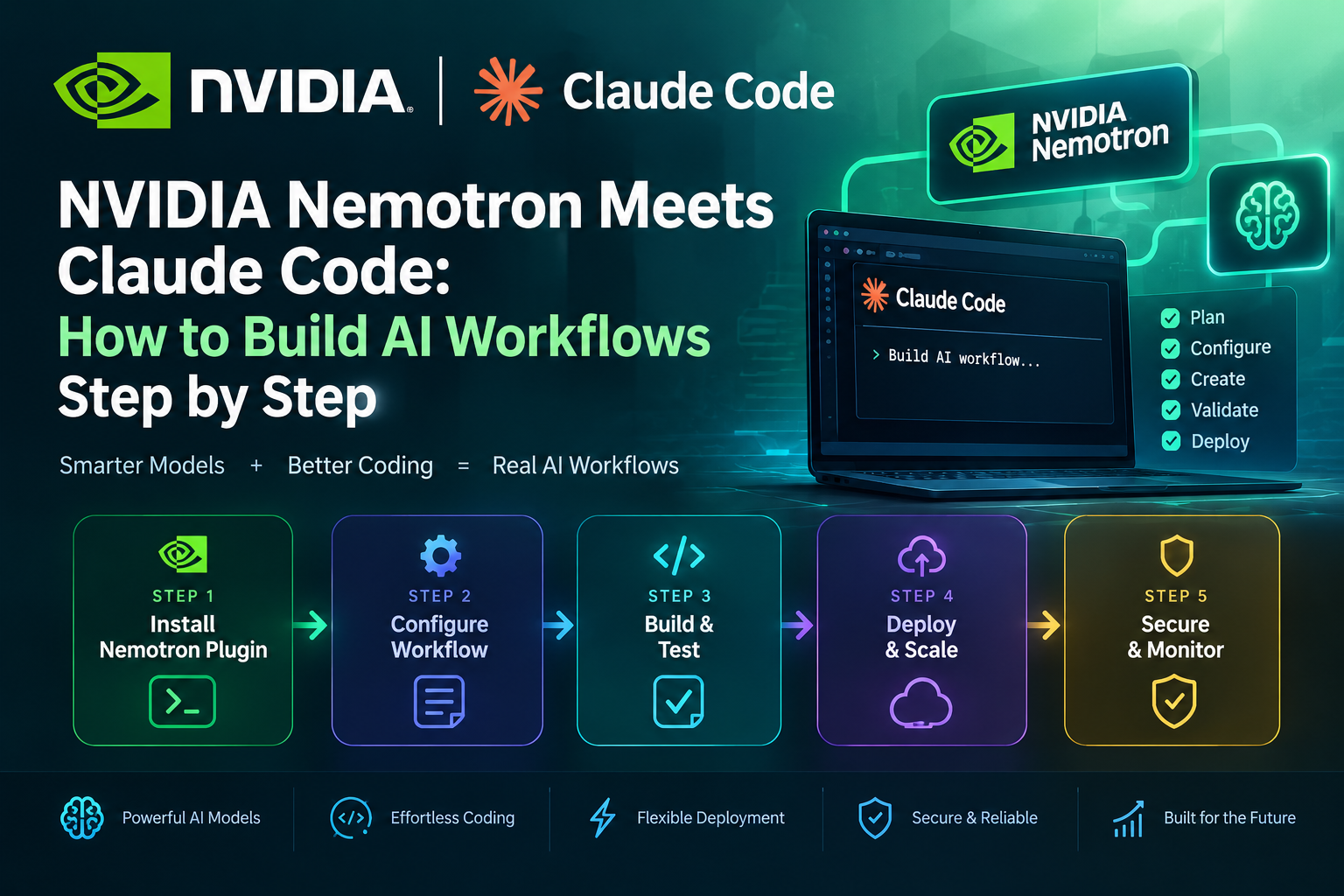
Step 1: Add the NVIDIA Nemotron Plugin Marketplace
Open Claude Code and enter the marketplace command shown in NVIDIA’s
documentation:
/plugin marketplace add NVIDIA/Nemotron
This tells Claude Code to add the Nemotron repository as a plugin
marketplace source. If the command fails, check the repository address,
Claude Code version, and any authentication or permission messages.
Step 2: Install the Customization Plugin
Once the marketplace has been added, install the documented plugin:
/plugin install nemotron-customize@nvidia-nemotron
This installs the nemotron-customize plugin. Do not assume
that every directory in the repository becomes a Claude Code plugin:
the repository’s plugin configuration determines which components are
loaded through the marketplace.
Step 3: Open the Nemotron Repository Root
The next step is to work from the Nemotron repository root, where the
expected project files and directories are available. The published
instructions identify files such as pyproject.toml and
the src/nemotron/steps/ directory as useful indicators
that you are in the right place.
If you have not cloned the repository yet, follow the current instructions
in the official README. I would avoid inventing a clone command or
directory structure if the project instructions have changed.
Step 4: Start the Nemotron Customization Workflow
From the appropriate project context, invoke the plugin command:
/nemotron-customize
Follow the prompts to describe the workflow you want to build.
According to the repository’s description, the plugin can help plan a
step-based workflow, validate how artifacts are connected, and produce
YAML configuration files. Inspect the generated output before using it
in a real environment.
that I personally executed them on your computer. Confirm the current
repository instructions and test the process in your own environment.
How to Build Your First Nemotron Workflow
After installation, I would begin with a small workflow instead of trying
to automate an entire application. A simple workflow is easier to
understand, test, and repair. It also helps reveal whether the generated
configuration matches the task I actually want to perform.
Step 1: Define One Clear Goal
Start by describing the outcome rather than listing a long collection of
vague instructions. For example, you might want a workflow that accepts
a document, extracts key information, validates required fields, and
saves a structured result. Keep the first version small enough that you
can inspect every stage.
Step 2: Identify the Inputs and Outputs
Each workflow step should have a clear purpose and a defined input and
output. If one step produces data that another step needs, that connection
should be represented correctly in the workflow configuration.
Missing or mismatched outputs can cause later steps to fail.
Step 3: Review the Generated YAML
YAML is a human-readable format often used for configuration. I would
review the generated YAML carefully, checking the step names, input
references, output fields, and any required settings.
A configuration that looks reasonable at first glance may still contain
an incorrect reference or an assumption about available data.
Step 4: Validate Before Running
Use the validation features provided by the project and review any
warnings or errors. Check whether every required input exists and whether
the output of each step matches what the next step expects.
Validation can catch structural problems, although it cannot guarantee
that every runtime result will be correct.
Step 5: Test with Small, Safe Inputs
Run the workflow with a small sample before using important files or
production data. Compare the output with the expected result, record
failures, and make one change at a time. This method makes it easier to
identify the cause of a problem.
Step 6: Document What Works
Once the workflow works as expected, document the configuration, software
versions, input format, and known limitations. This gives you a repeatable
process rather than a one-time demonstration.
I would also keep a copy of the last known-good configuration before
making substantial changes.
Running Nemotron Models Separately
Installing the customization plugin and running a Nemotron model are
separate tasks. If your goal is to serve a Nemotron model, you need to
choose a compatible model, select an inference engine or hosted service,
and configure the application that will send requests to it.
The exact procedure depends on the model and the deployment environment.
Common Model Deployment Options
| Option | Typical purpose | What to verify |
|---|---|---|
| vLLM | Serving supported models through an inference server | Model compatibility, hardware, memory, and installation requirements |
| SGLang | Serving supported models for compatible inference workloads | Supported model architecture and configuration |
| Ollama | Running supported models through a local model-management workflow | Whether the specific model is available and supported |
| llama.cpp | Running supported model formats on compatible hardware | Model format, quantization, memory, and feature support |
| Hosted API or NVIDIA NIM | Accessing a model through a managed endpoint or service | Availability, authentication, pricing, rate limits, and terms |
These options are not interchangeable for every model. I would consult
the selected model’s current documentation before choosing a serving
engine. A model’s availability in one tool does not guarantee that it
will work with every other tool.
Can I Make Claude Code Use a Nemotron Model?
That is a different configuration question from installing the
nemotron-customize plugin. Whether a Nemotron model can be
used with a particular coding client depends on the client’s supported
model providers, API compatibility, and configuration options.
Do not assume that an OpenAI-compatible endpoint or a locally hosted
model will automatically work with every Claude Code feature.
I would check Anthropic’s current documentation and the model-serving
provider’s instructions before attempting this configuration. Keep the
model connection separate from the plugin setup so that any problems
can be diagnosed independently.
Practical Use Cases for Nemotron Workflows
The value of a workflow comes from solving a repeatable problem.
I would focus on tasks with clear inputs, predictable outputs, and
a straightforward way to check correctness. These are easier to automate
safely than tasks that require unrestricted access or subjective decisions.
1. Document Processing
A workflow could extract fields from a document, check whether required
information is present, and produce a structured result. A validation
step could flag missing fields instead of silently guessing their values.
Sensitive documents should only be processed in an environment approved
for that data.
2. Data Transformation
Another use case is converting unstructured input into a consistent
format. For example, a workflow might turn a collection of text records
into structured data that can be reviewed before importing it into
another system. I would compare a sample of the transformed records
against the originals to catch errors.
3. Development Support
A coding workflow can help inspect a repository, identify relevant files,
draft changes, and prepare test results for review. The workflow should
make it clear which actions are automated and which require approval.
I would not give an agent unrestricted permission to modify or deploy
production systems.
4. Repeatable AI Pipelines
Teams can use structured workflows to make multi-step AI tasks easier
to maintain. Each stage can have a defined responsibility, making it
easier to isolate failures and change one part without redesigning
everything. The best design is usually the simplest workflow that meets
the requirements reliably.
Nemotron vs Claude: Understanding the Difference
Comparing Nemotron and Claude requires care because the names refer to
different product families and services. NVIDIA Nemotron is a family
of models and related resources, while Claude is Anthropic’s family
of AI models. Claude Code is a coding tool built around Anthropic’s
ecosystem.
| Question | What I would compare |
|---|---|
| Which is better for my task? | Test the specific models on representative tasks rather than comparing brand names alone. |
| Can I host it myself? | Check the selected model’s weights, licence, hardware needs, and deployment support. |
| Which is cheaper? | Compare API charges or hosting costs, hardware, electricity, maintenance, and staff time. |
| Which is better for coding? | Evaluate code quality, tool support, debugging, reliability, and the workflow you need. |
| Which is easier to maintain? | Consider setup effort, updates, monitoring, security, and troubleshooting requirements. |
I would not declare a universal winner without testing specific versions
against the same tasks. Results can vary by model, prompt, hardware,
context length, and evaluation method. A fair comparison should record
the conditions and include failures, not just successful examples.
Common Problems and Solutions
The Plugin Marketplace Command Fails
First, check whether Claude Code is installed and whether your version
supports the documented plugin commands. Then verify the marketplace
reference against the current NVIDIA README. If the error mentions
permissions or connectivity, resolve that issue before retrying.
The Plugin Is Not Recognised
Confirm that the marketplace was added successfully and that the plugin
installation completed. Check the spelling of the plugin name and its
marketplace identifier. If the repository has changed, use its latest
instructions rather than assuming an older command is still valid.
The Customization Command Does Not Work
Check that the plugin is installed and that you are working in the
expected project context. Verify that the Nemotron repository files are
available and review the error message for missing dependencies or
configuration problems. If the issue continues, consult the repository’s
current documentation and issue tracker.
The Generated YAML Fails Validation
Inspect the step definitions, input references, and output fields.
Look for misspelled names, missing values, and references to outputs
that do not exist. Correct one problem at a time, then rerun validation
before executing the workflow.
The Model Runs Slowly or Fails to Load
Model performance depends on hardware, memory, context size, precision,
and the inference engine. Check the requirements for the exact model
and inspect the runtime logs. A smaller compatible model or a different
deployment configuration may be more appropriate for limited hardware.
Security, Licensing, and Production Use
AI development tools can access project files and execute commands
depending on their permissions and configuration. Before using them
with important projects, I would inspect what the agent can read, change,
and run. Start with a test repository and avoid granting unnecessary
privileges.
Protect API Keys and Credentials
Never paste private credentials into prompts, publish them in source
code, or commit them to a public repository. Use an appropriate secrets
manager or environment-based configuration supported by your deployment.
If a credential is exposed, revoke it and create a replacement.
Check Model and Plugin Licences
The licence for a model, plugin, or related code can have different
conditions. Read the terms for the exact version you plan to use,
especially if the workflow will be part of a commercial product.
Do not assume that a public repository means every asset can be used
without restrictions.
Review Generated Files Before Deployment
Generated configurations and code should be treated as proposed changes,
not guaranteed-correct output. Review permissions, external connections,
file paths, and any operations that could modify or delete data.
Run tests in a controlled environment before deploying to production.
Measure Quality and Cost
Before scaling a workflow, track its success rate, failure cases,
execution time, and operating cost. Use representative inputs and
repeatable tests to identify whether changes improve the result.
I would expand the workflow only after it meets clear quality and
security requirements.
Frequently Asked Questions
What is NVIDIA Nemotron used for?
NVIDIA Nemotron is a family of AI models and related resources used for
tasks such as language generation, reasoning, and AI applications.
The capabilities and deployment choices depend on the specific model
and release.
Does installing the Nemotron plugin install a Nemotron model?
No. Installing the nemotron-customize plugin does not
automatically install or host a Nemotron model. Model deployment is
a separate task that depends on the model, hardware, and serving method.
What commands install the Nemotron customization plugin?
NVIDIA’s documented instructions use
/plugin marketplace add NVIDIA/Nemotron to add the
marketplace and
/plugin install nemotron-customize@nvidia-nemotron
to install the plugin. Check the current official repository in case
the instructions have changed.
What does the /nemotron-customize command do?
The plugin’s documented workflow helps plan steps, validate artifact
connections, and generate YAML configurations. Review and test the
generated configuration before using it for important work.
Can I run a Nemotron model on my own computer?
Potentially, yes, if the particular model and deployment software support
your hardware. Check memory, storage, model format, and runtime
requirements before attempting local deployment.
Is Nemotron always free for commercial use?
Do not assume that every model or component has identical terms.
Check the licence and usage conditions for the exact model, plugin,
and software release you intend to use.
Is Claude Code the same as a Nemotron model?
No. Claude Code is Anthropic’s coding tool, while Nemotron is NVIDIA’s
family of AI models and associated resources. A plugin can connect
workflows to a project without automatically changing the underlying
model used by Claude Code.
Is this setup suitable for production?
It may be part of a production workflow after appropriate testing,
security review, licensing checks, monitoring, and operational planning.
A successful installation alone does not establish that a workflow
is production-ready.
Conclusion: Start Small and Build with Confidence
I see NVIDIA Nemotron and Claude Code as useful parts of a broader AI
development toolkit, provided we understand their different roles.
The Nemotron customization plugin can help create and validate structured
workflows, while running a Nemotron model requires a separate decision
about the model and its deployment environment.
My recommendation is to begin with the official instructions, install
the plugin carefully, and build one small workflow. Review the generated
YAML, test it with safe sample data, and document the results.
Once the process is reliable, you can decide whether a larger workflow
or separate model deployment is worth the added complexity.
The most useful AI setup is not necessarily the most complicated one.
It is the setup you can understand, test, secure, and maintain.
Official Sources and Further Reading
-
NVIDIA Nemotron official GitHub repository
— repository, plugin instructions, and project resources. -
NVIDIA Nemotron README
— current project overview and setup guidance. -
NVIDIA Nemotron developer page
— information about the Nemotron model family. -
Anthropic Claude Code documentation
— official documentation for Claude Code.