
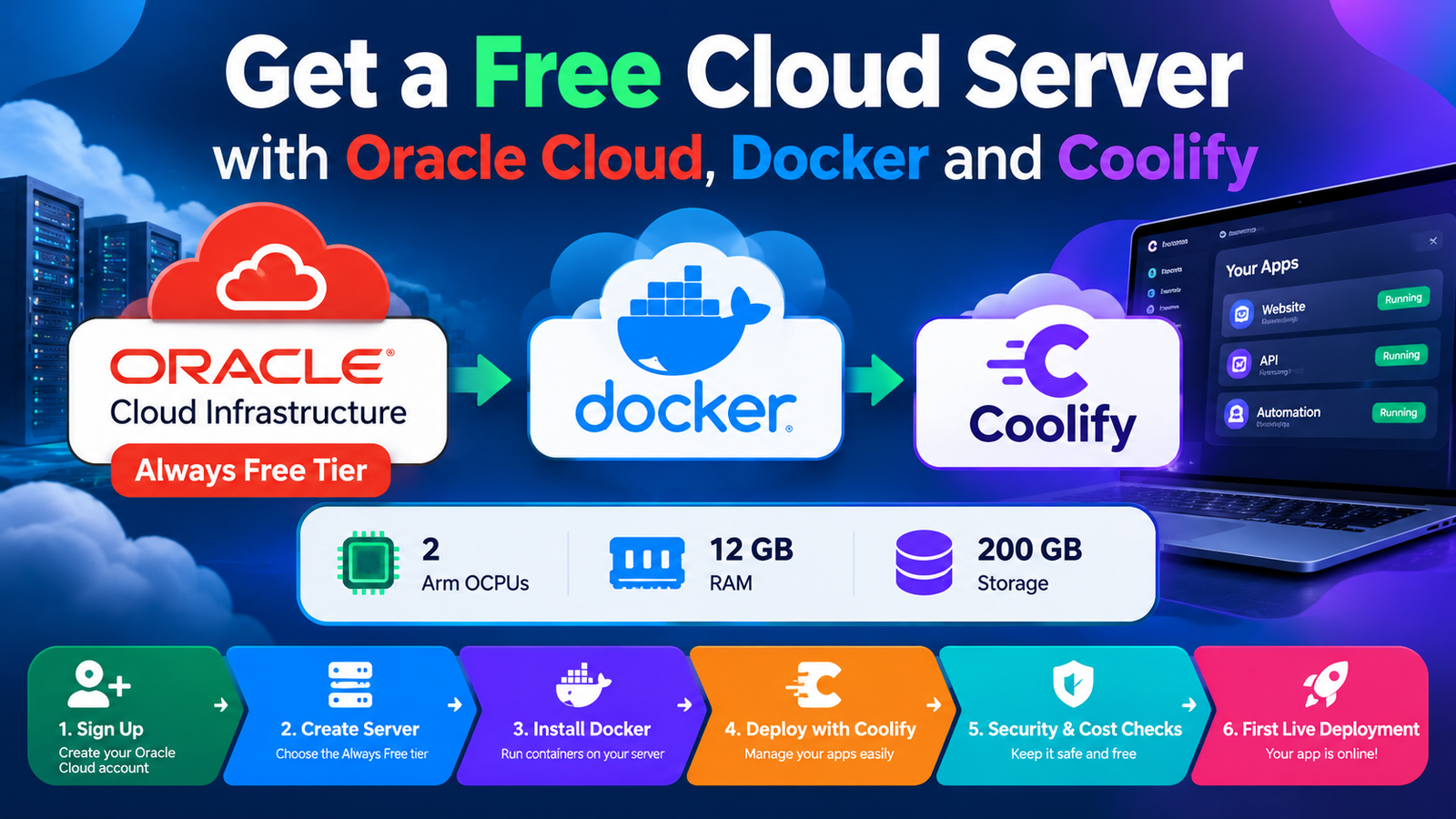
Get a Free Cloud Server in 2026: Host Your Own Apps with Oracle Cloud and Coolify
You can get a free cloud server from Oracle Cloud’s Always Free tier, then use Docker and Coolify to host your own apps. Oracle currently documents 2 Arm OCPUs, 12 GB of RAM, and 200 GB of storage as free. This guide shows each step, from signup to your first live deployment, plus security and cost checks.
Monthly hosting bills add up fast. A small website costs a few dollars, an API costs a few more, and a database costs even more. Soon you pay for five services just to run one project. I think that is the main reason developers and small business owners look for a free cloud server.
Oracle Cloud offers one of the few free tiers that gives you a real virtual machine, not just a trial website. Docker lets you run each app in its own container. Coolify gives you a web dashboard to deploy those containers from a Git repository, much like a paid platform would. Together, they let you build your own small hosting platform.
By the end of this guide, you will have a Linux server on Oracle Cloud with Docker and Coolify installed. You will deploy a first app, connect a domain, and turn on HTTPS. You will also know how to secure the server and avoid surprise charges.
Please read the limits before you start. Free-tier rules can change, and Oracle has already changed the Arm allowance this year. I built these steps from the official Oracle, Docker, and Coolify documentation, checked in October 2026. Always compare each command with the official page before you run it, because no free tier is a promise of free forever.
What Is a Free Cloud Server, and How Does It Work?
What Is a Cloud Server?
A cloud server is a computer that lives in a data center and that you rent over the internet. You do not touch the hardware. You connect to it from your own laptop and use it like a normal computer without a screen. The provider handles power, cooling, and the physical machine.
Most cloud servers are virtual. This means one large physical machine is split into many smaller ones. Each smaller machine has its own CPU share, memory, and disk. You get full control of your slice.
How Does a Virtual Machine Run Applications?
A virtual machine, or VM, acts like a complete computer inside another computer. It has its own Linux system, its own users, and its own network address. You install software on it just as you would on a home computer. Your apps then run inside the VM and answer requests from the internet.
On top of the VM, Docker runs your apps in small isolated boxes called containers. Coolify then manages those containers for you. I like this layered setup because each layer has one clear job. When something breaks, you can find out which layer failed.
What Is the Difference Between Free Cloud Hosting and Traditional Web Hosting?
Traditional shared hosting gives you a folder on someone else’s server. It is easy, but you cannot install your own software. A free cloud server gives you the whole machine. That means more power, but also more responsibility.
| Feature | Traditional web hosting | Free cloud server (Oracle) |
|---|---|---|
| Control | Limited to a control panel | Full root access to Linux |
| Setup effort | Low | Medium to high |
| Install your own software | Usually no | Yes |
| Security work | Mostly done by the host | Mostly done by you |
| Cost | Monthly fee | Free within documented limits |
| Best for | Simple websites | Apps, APIs, tools, and learning |
What Can You Realistically Do With a Free Cloud Server?
You can host a personal site, a small business site, a side project, a bot, or a few lightweight tools. You can also run a test environment for your code. These are real, useful jobs. I would not promise more than that.
A free server is not the right place for a busy online store or an app that must never go down. Free tiers have limits, and the provider can change them. My rule is simple: host what you can afford to lose or move. Keep backups of everything else.
Does Oracle Cloud Offer a Free Server?
What Is Included in Oracle Cloud’s Free Tier?
Yes, Oracle Cloud Infrastructure has an Always Free tier. Oracle’s documentation says these resources are free for the life of the account, in your home region. The list includes compute, storage, and data transfer. It also includes some databases and networking tools.
| Resource | Always Free allowance (per Oracle’s docs) |
|---|---|
| Arm compute (VM.Standard.A1.Flex) | 1,500 OCPU hours and 9,000 GB hours per month, equal to 2 OCPUs and 12 GB of memory |
| AMD micro compute | Up to 2 instances, each with 1/8 OCPU and 1 GB of memory |
| Block and boot storage | 200 GB combined, plus 5 volume backups |
| Outbound data transfer | 10 TB per month |
| Virtual cloud networks | Up to 2 |
| Outbound email (TCP port 25) | Blocked by default |
Which Compute Configurations Are Eligible for Free Usage?
Two compute types are free. The first is the Arm Ampere A1 shape, called VM.Standard.A1.Flex. You can use it as one instance with all the allowance, or split it into smaller instances. The second is the AMD micro shape with only 1 GB of memory.
Please note that Coolify needs at least 2 CPU cores and 2 GB of RAM according to its documentation. The AMD micro instance is too small for it. So the Arm instance is the one to choose for this guide. I would use a single instance with 2 OCPUs and 12 GB of memory.
A Warning About Older Guides
Many older tutorials say the free Arm allowance is 4 OCPUs and 24 GB. Oracle’s documentation and a July 2026 post on its Cloud Customer Connect forum now list 2 OCPUs and 12 GB, and press reports date the change to mid-June 2026. Oracle gave no clear public notice at the time, and some accounts may still show the old numbers. I would plan for the documented limit and treat anything extra as a bonus that may disappear.
How Do Always Free Resources Differ From Trial Credits?
Oracle gives new accounts a free trial with $300 in credits, valid for up to 30 days. You can spend those credits on almost any service. Always Free resources are separate and do not expire. They are limited to specific services and sizes.
| Question | Free trial | Always Free |
|---|---|---|
| What do you get? | $300 in credits | Specific free resources |
| How long? | Up to 30 days | For the life of the account, per Oracle |
| What can you use? | Any eligible OCI service | Only the listed Always Free services |
| When it ends | Trial resources are reclaimed unless you upgrade | Resources keep running within limits |
Oracle’s documentation adds an important rule. If you have more Arm instances than the Always Free limit when the trial ends, they are disabled and then deleted after 30 days unless you upgrade. To keep them, stay at or below 2 OCPUs and 12 GB in total before the trial ends. I would create only one Arm instance at that size from the start.
Which Regions and Server Configurations Are Available?
Always Free compute and block volumes must be created in your home region. You pick this region when you sign up, and it is hard to change later. Arm instances can be created in any availability domain, except South Korea North (Chuncheon). Free Tier resources are not available in US Government Cloud regions.
Popular regions sometimes run out of free Arm capacity. Oracle shows an “out of host capacity” error in that case. I suggest choosing a region with less demand if you have a choice. Think about your users too, because distance affects speed.
Can Oracle Cloud Charge You for Exceeding Free Limits?
It depends on your account type. Oracle says your credit card is not charged unless you upgrade your account. On a Pay As You Go account, usage beyond the Always Free allowance can be billed. Volumes created outside the home region also incur normal charges.
Reports say Oracle support gave Pay As You Go users conflicting answers about whether the lower Arm limit applies to them. Oracle’s documentation does not separate account types, so I would ask Oracle Support and save the reply. For that reason, I would not upgrade to Pay As You Go unless I needed to. If I did, I would check my usage every week.
What Should You Check Before Creating an Account?
- Read the current Always Free page on Oracle’s documentation site.
- Choose your home region carefully, because free compute stays there.
- Prepare a mobile phone number and a credit card for verification.
- Decide whether you can accept losing the server if Oracle changes the rules.
- Plan a backup place outside Oracle for important data.
What Do You Need Before Setting Up Your Free Cloud Server?
Oracle Cloud Account and Identity Verification
You need an Oracle Cloud account. Oracle says most users need a mobile phone number and a credit card to sign up. The card is used for identity checks. Oracle states it will not charge the card unless you upgrade.
Use your real details, because mismatched information is a common reason for failed signups. Use one account only. Creating many accounts to get more free resources can get you blocked, and I do not recommend it.
Linux Operating System and Basic Command-Line Knowledge
You will work in a Linux terminal. You do not need to be an expert, but you should know how to move between folders, edit a file, and read an error message. I recommend Ubuntu because the Docker and Coolify documentation both support it. Oracle also offers Ubuntu images for its free Arm shape.
If you are new to Linux, practice a few commands first. Learn ls, cd, sudo, and nano. These four will carry you through this guide. Do not copy commands without reading them.
SSH Keys and Secure Server Access
SSH is the secure way to connect to your server from your computer. A key pair has a private key that stays on your computer and a public key that goes on the server. The server lets you in only if you hold the matching private key. This is safer than a password.
ssh-keygen -t ed25519 -C "my-oracle-server"This command creates the key pair. Keep the private key file safe and never share it. I also make an offline copy in case my laptop fails.
Domain Name, DNS, and HTTPS Requirements
You can test with your server’s IP address, but a real website needs a domain name. DNS is the system that turns your domain into your server’s IP address. HTTPS adds encryption so visitors see the padlock. You will point a domain’s A record to your server later in this guide.
A domain usually costs a small yearly fee. That is the one expense I think is worth paying even in a free setup. Without a domain, you cannot get a normal HTTPS certificate for your site. For learning, you can skip it at first and add it later.
Minimum Hardware Resources for Docker and Coolify
Coolify’s documentation lists these minimums for a server: 2 CPU cores, 2 GB of RAM, and 10 GB of free disk. It supports both amd64 and arm64 processors. Docker itself is light, but your apps need room too. I would never run Coolify on the smallest possible server.
| Component | Minimum from the docs | My practical advice |
|---|---|---|
| CPU | 2 cores (Coolify) | Use the full 2 OCPUs of the free Arm allowance |
| RAM | 2 GB (Coolify) | Use 12 GB so apps and builds have room |
| Disk | 10 GB free (Coolify) | Use a larger boot volume, up to your 200 GB total |
| Architecture | amd64 or arm64 | Arm64, so check your app images support it |
How to Create a Free Virtual Machine on Oracle Cloud
Step 1 — Create and Verify Your Oracle Cloud Account
Go to Oracle’s Free Tier signup page and enter your email, name, and country. Choose your home region on this screen. Verify your phone number and add your card. Wait for the confirmation email before you log in.
Account setup can take a few minutes, and sometimes longer. Do not create a second account while you wait. I check the spam folder first when an email is late.
Step 2 — Select a Region With Available Capacity
The home region you chose at signup decides where your free compute lives. If you can still choose, pick a region that is close to your users. Also remember that busy regions may run out of free Arm capacity. You cannot easily move your home region later.
If your region has several availability domains, the create screen lets you pick one. Try another one if you see a capacity error. Oracle’s own documentation gives this advice too.
Step 3 — Choose an Eligible Compute Configuration
In the Oracle Console, open the menu and go to Compute, then Instances, then Create instance. Under Shape, choose Ampere and select VM.Standard.A1.Flex. Set 2 OCPUs and 12 GB of memory. Check that the page shows the instance as Always Free eligible.
Do not go above the allowance. If you use more than 2 OCPUs or 12 GB in total, you may leave the free tier. On a trial account, this may spend your credits. I keep a note of my sizes so I never lose track.
Step 4 — Select a Supported Linux Image
Under Image, choose Canonical Ubuntu. Oracle lists Ubuntu as supported for the free Arm shape. Docker’s official guide supports Ubuntu 22.04 and 24.04, among others. I use the latest long-term support version when it is listed.
Make sure the image matches the Arm architecture. If you pick an x86 image by mistake, the shape will not allow it. Read the image name before you click.
Step 5 — Configure SSH Keys and Network Access
In the networking section, create or choose a virtual cloud network and a public subnet. Make sure the instance gets a public IPv4 address, because you need it to connect. In the SSH keys section, paste your public key or upload the public key file. Never upload the private key.
Under the boot volume, you can set a larger size. The default is about 50 GB, and your free total is 200 GB across all volumes. I give the server a generous boot volume because Docker images use a lot of space. Leave room for backups.
Step 6 — Launch the Virtual Machine
Click Create and wait for the status to change from Provisioning to Running. This usually takes a minute or two. When it is running, copy the public IP address from the instance page. Save it in a safe place.
If the page shows “out of host capacity,” do not panic. Try another availability domain, wait and retry, or read the fixes later in this guide. Oracle also says you can upgrade to a paid account as an option. I would try the free routes first.
Step 7 — Connect to the Server Through SSH
Open a terminal on your computer. Use your private key and the public IP address. Oracle’s Ubuntu images use the user name ubuntu, while Oracle Linux images use opc.
ssh -i ~/.ssh/id_ed25519 ubuntu@YOUR_PUBLIC_IPType “yes” when asked to trust the server. If you see a permission error about the key file, restrict its permissions with chmod 600. A successful login shows a Linux prompt. You are now inside your own cloud server.
Step 8 — Verify CPU, RAM, Disk Space, and Connectivity
Run a few quick checks to confirm you got what you expected. These commands show your CPU count, memory, disk space, and internet access. Compare the results with your plan.
nproc
free -h
df -h /
curl -I https://example.com
You should see 2 CPUs and about 12 GB of memory. The disk size should match your boot volume. If these numbers are wrong, stop and fix the shape before you install anything. It is much easier to fix now.
What to Do if the Desired Server Configuration Is Unavailable
Free Arm capacity is often limited. Oracle suggests three actions: try another availability domain, wait and try again, or upgrade to a paid account. Some people also try a smaller shape first, such as 1 OCPU and 6 GB, then resize later. A smaller size may be available when a larger one is not.
Be careful with automated retry scripts that people share online. They can break Oracle’s terms or create unwanted resources. I prefer to retry by hand at different times of day. Patience costs nothing.
How to Install Docker on Your Cloud Server
What Is Docker, and Why Use It for Self-Hosting?
Docker packages an app and everything it needs into one unit called a container. The container runs the same way on your laptop and on your server. This avoids the “it works on my machine” problem. It also keeps apps apart, so one broken app does not damage another.
For self-hosting, Docker makes updates and rollbacks simple. You replace the container instead of fixing the system. I think this is the biggest quality-of-life gain for anyone running their own server.
Update the Linux System Before Installation
Start with a fresh update so you have the latest security fixes. Run these two commands. If a restart is requested, do it and reconnect.
sudo apt update
sudo apt upgrade -y
Docker’s documentation also asks you to remove unofficial packages first. These include docker.io, docker-compose, and podman-docker. A fresh server usually has none of them. It is still worth checking.
Install Docker Using the Official Instructions
I follow Docker’s official apt repository method for Ubuntu. It takes two short parts. First comes the signing key, and then the repository itself. I run them in this order every time.
Add Docker’s Signing Key
sudo apt update
sudo apt install ca-certificates curl
sudo install -m 0755 -d /etc/apt/keyrings
sudo curl -fsSL https://download.docker.com/linux/ubuntu/gpg -o /etc/apt/keyrings/docker.asc
sudo chmod a+r /etc/apt/keyrings/docker.asc
Add the Repository and Install the Packages
Next, add the repository and install the packages. Docker’s page gives the exact repository file, so compare this with it before you run it. Docker may update its steps, and the official page is always the final authority.
sudo tee /etc/apt/sources.list.d/docker.sources <<EOF
Types: deb
URIs: https://download.docker.com/linux/ubuntu
Suites: $(. /etc/os-release && echo "${UBUNTU_CODENAME:-$VERSION_CODENAME}")
Components: stable
Signed-By: /etc/apt/keyrings/docker.asc
EOF

sudo apt update
sudo apt install docker-ce docker-ce-cli containerd.io docker-buildx-plugin docker-compose-plugin
Start Docker and Verify That It Is Running
The install normally starts Docker for you. Check its status, and then run the test container from Docker’s guide. The test downloads a tiny image and prints a message. If you see that message, Docker works.
sudo systemctl status docker
sudo docker run hello-world
If Docker is not running, start it with sudo systemctl start docker. Docker’s page notes that the docker group exists but has no users by default. That is why you need sudo for Docker commands. I leave it that way on a server, because the docker group gives near-root power.
Understand Docker Images, Containers, and Volumes
An image is a read-only template for an app. A container is a running copy of an image. A volume is storage that lives outside the container, so your data survives when the container is replaced. Without a volume, deleting a container deletes its data.
- Image: the recipe, such as a web server or database.
- Container: the running dish made from that recipe.
- Volume: the fridge where your data is kept safe.
Common Docker Installation Errors and Their Solutions
| Error | Likely cause | Fix |
|---|---|---|
| Permission denied on the Docker socket | Running Docker without sudo | Use sudo, or follow Docker’s post-install steps if you accept the risk |
| Package not found or repository error | Wrong repository file or unsupported Ubuntu version | Compare your file with Docker’s official page and check your Ubuntu version |
| Conflicting packages | Unofficial Docker packages are installed | Remove them, then install again |
| Docker will not start | Service stopped or a failed install | Run sudo systemctl status docker and read the log |
| Image does not run | Image not built for Arm | Choose an arm64 image or a multi-architecture image |
How to Install Coolify and Deploy Applications
What Is Coolify, and How Does It Simplify Deployment?
Coolify is a self-hosted platform that lets you deploy apps from a web dashboard. You connect a Git repository, click deploy, and Coolify builds and runs your app. It can also manage domains, certificates, databases, and environment variables. I see it as a do-it-yourself version of the paid platforms many developers know.
The benefit is time. You avoid writing long command sequences for every new app. The cost is that you must keep Coolify and your server updated.
Check the Server’s Compatibility With Coolify
Coolify’s documentation says it needs SSH access to a server, and it recommends a fresh one. It supports Debian-based systems such as Ubuntu, among other Linux families. It requires at least 2 CPU cores, 2 GB of RAM, and 10 GB of free disk. It runs on amd64 and arm64.
Our Arm server with 2 OCPUs and 12 GB meets these needs. Ubuntu non-LTS releases should use the manual install, according to Coolify. I stay on an LTS release to avoid that extra work.
Install Coolify Using Its Official Installation Procedure
The documentation gives one automated install command. It needs root access, so log in as root or use a user with sudo privileges. Run it on your fresh server and wait until it finishes. Read the output for any errors.
curl -fsSL https://cdn.coollabs.io/coolify/install.sh | bashPiping a script into bash means you trust the source completely. I always open the script in a browser first and read it. If you prefer, Coolify also documents a manual install.
Open the Dashboard and Complete the Initial Setup
Open the Right Ports First
After the install, Coolify’s dashboard runs at your server’s IP address on port 8000. Before you can open it, you must allow port 8000 in Oracle’s network settings. Open the instance’s subnet security list and add an ingress rule for TCP port 8000. Also check the server’s own firewall, since Oracle images often ship with their own rules.
Create the Admin Account
Open http://YOUR_PUBLIC_IP:8000 in a browser. Create the admin account right away with a strong, unique password. Do this first, because an unclaimed dashboard on the internet is a risk. After setup, I restrict port 8000 to my own IP address.
Connect a Git Repository or Supported Application Source
In the dashboard, create a project and add a new resource. Choose a source, such as a public repository, a private repository, or a Docker image. For private repositories, Coolify can use a deploy key or a GitHub app. I prefer deploy keys with read-only access.
Pick a simple test app for your first try. A small static site or a basic Node app works well. Make sure it builds on arm64. A small first win teaches you more than a big complex app.
Configure Environment Variables and Persistent Storage
Environment variables hold settings such as database addresses and secret keys. Add them in the app’s settings, not in your code. Coolify keeps them with the app so they are applied on each deploy. Never commit secrets to Git.
Persistent storage keeps data after a redeploy. Add a volume for any folder that must survive, such as uploads or a database folder. I always check this before the first deploy. Forgetting it is the most common way to lose data.
Deploy Your First Application
Click Deploy and watch the build log. The log shows each step, such as installing packages and starting the container. A green status means the app is running. A red status means you should read the log from the bottom up.
Do not worry if the first deploy fails. Most failures come from a missing variable, a wrong port, or a build that needs more memory. Fix one thing at a time and deploy again.
Configure a Domain Name and HTTPS
Point DNS to Your Server
First, create a DNS A record at your domain provider that points to your server’s public IP. Wait for it to spread, which can take minutes or hours. Then, in Coolify, enter your domain in the app’s settings using https://. Coolify’s proxy can request and renew a free certificate when DNS is correct.
Check Ports and Test the Certificate
Make sure ports 80 and 443 are open in Oracle’s security list and on the server. Without them, certificate checks fail. I test with a browser and look for the padlock. If it fails, DNS and open ports are the first two things to check.
Verify That the Application Is Accessible
Open your domain from a phone on mobile data, not only from your home network. This confirms that the app is visible to the whole internet. Check the page, the HTTPS padlock, and any forms or logins. Then reload the page after a few minutes.
Also restart the server once and confirm that the app returns on its own. This test shows whether your setup survives a reboot. I do it before I trust any server with real work.
What Applications Can You Host on One Free Cloud Server?
Host a Personal or Business Website
A static website is the lightest option. It uses very little memory and loads fast. A WordPress site needs more power, because it runs a database and PHP. A small business site with moderate traffic fits well on this server.
Deploy a Web Application and Its API
You can run a front-end app and an API together on one server. Coolify lets you set a domain for each, such as app.example.com and api.example.com. Keep an eye on memory during builds, because build steps use more RAM than the running app. I would watch the first few builds closely.
Run Lightweight Automation Tools
Small automation and monitoring tools fit this server well. Examples include workflow tools, uptime checkers, and personal dashboards. They run all day but need little CPU. This is where a free server shines.
Host Databases and Supporting Services
You can run databases such as PostgreSQL or MySQL in containers, or use Oracle’s free managed database options. Self-hosted databases need regular backups and careful memory limits. A database that runs out of memory can crash and damage data. I would back up the database before I trust it.
Create Development and Testing Environments
A test server is a safe place to try new versions of your code. You can deploy a branch, share the link, and delete it afterward. This is useful for freelancers and small teams. It costs nothing, so mistakes are cheap.
How Many Applications Can One Server Handle?
There is no fixed number. It depends on how much memory and CPU each app uses and how many visitors you have. Ten tiny apps may fit easily, while two heavy apps may not. Measure real use instead of guessing.
How to Estimate RAM, CPU, and Storage Requirements
Start by running one app and checking its real memory use. Use docker stats and free -h for this. Add the numbers for each app, and then add a safety margin for the system, Docker, and Coolify. Keep at least a quarter of your memory free for builds and spikes.
| Workload type | Typical demand | What to watch |
|---|---|---|
| Static website | Very low | Disk and bandwidth |
| Small API or bot | Low | Memory growth over days |
| WordPress or similar CMS | Medium | Database memory and disk |
| Database service | Medium to high | RAM limits and backups |
| Build jobs | High for short periods | Memory spikes during deploys |
How to Secure and Maintain a Self-Hosted Cloud Server
Restrict SSH and Administrative Access
Use SSH keys only and turn off password login. Limit port 22 in Oracle’s security list to your own IP address if it stays the same. Do the same for the Coolify dashboard on port 8000 after setup. Fewer open doors mean fewer attacks.
Avoid logging in as root for daily work. Use a normal user with sudo instead. I also keep a second, tested way into the server, so I never lock myself out.
Configure Firewall Rules and Exposed Ports
You have two firewall layers: Oracle’s network rules and the firewall on the server. Open only what you need, usually 22, 80, and 443. Docker’s documentation warns that published container ports can bypass tools such as UFW. So do not trust UFW alone to hide a container port.
The safest habit is to publish only the ports you truly want public. Let Coolify’s proxy handle web traffic. Keep databases off the public internet entirely.
Keep Linux, Docker, and Applications Updated
Run system updates on a regular schedule, such as once a week. Update Docker through the same package system. Update Coolify and your app images too. Old software is the most common way servers get hacked.
Read release notes before large updates. I take a backup before any major change. A quick backup turns a disaster into a small delay.
Protect Secrets, Credentials, and Environment Variables
Never put passwords or API keys in your Git repository. Store them in Coolify’s environment variables or a secret manager. Use different passwords for each service. Rotate any key you think may have leaked.
Be careful what you share in screenshots and support requests. Logs often contain secrets. I blur or remove them before I post anywhere.
Set Up Backups and Test Recovery
A backup you have never restored is only a hope. Back up your databases, your volumes, and your Coolify settings. Store copies outside Oracle, such as on another cloud or your own computer. Oracle’s free tier includes volume backups, but only 5 in total.
- List what must be saved: databases, uploads, and configuration.
- Automate the backup on a schedule.
- Copy the files to a second location.
- Restore one backup on a test server every few months.
Monitor Server Performance and Resource Consumption
Check CPU, memory, and disk regularly. Simple tools such as htop, docker stats, and df -h are enough to start. Add an uptime monitor that emails you when a site goes down. Early warnings give you time to fix problems before users complain.
Monitoring also helps with Oracle’s idle rule. Oracle’s documentation says an Always Free instance may be reclaimed if, over 7 days, its CPU, network, and memory (on Arm shapes) use all stay below 20%. A server that runs real apps should avoid this, but a very quiet server may be at risk. I would watch my own numbers and read the live policy.
Prevent Unexpected Cloud Charges
- Stay inside your home region for Always Free resources.
- Keep total Arm usage at or below 2 OCPUs and 12 GB.
- Do not upgrade to Pay As You Go unless you accept possible bills.
- Delete unused volumes, backups, and test instances.
- Check your billing and usage pages every week.
- Use budget and alert tools if your account offers them.
Common Oracle Cloud, Docker, and Coolify Problems
Why Is the Desired Oracle Cloud Capacity Unavailable?
Free Arm servers are popular, and some regions run out of capacity. Oracle’s fix list is short: try another availability domain, wait and retry, or upgrade. You can also start smaller and resize later. I would also avoid the busiest regions when signing up.
Why Can You Not Connect to the Server Through SSH?
Check these causes in order. Does the instance have a public IP address? Does the security list allow TCP port 22? Are you using the right user name, such as ubuntu, and the right private key? Is the key file permission set with chmod 600?
If all of these look right, check the server’s own firewall and the instance’s console messages. Using a different network can also help, since some networks block SSH. Go slowly and change one thing at a time.
Why Is the Application Inaccessible From the Internet?
The most common cause is a closed port. Check Oracle’s security list and the server’s firewall for ports 80 and 443. Next, check that your DNS record points to the correct IP. Finally, confirm that the app listens on the correct port inside the container.
Why Does a Docker Container Keep Restarting?
A restarting container means the app starts and then crashes. Do not guess the cause. Read the logs first.
sudo docker ps -a
sudo docker logs --tail 100 CONTAINER_NAME
Common causes are a missing environment variable, a wrong command, a bad database connection, or running out of memory. On Arm, a wrong image architecture also causes crashes. Fix the cause shown in the log, not the restart itself.
Why Does Coolify Fail to Deploy an Application?
Open the deployment log in Coolify and read the first error, not the last one. Check free disk space with df -h, because old images fill the disk quickly. Check that the build commands, the port, and the variables are correct. Make sure the base image works on arm64.
How Do You Troubleshoot High Memory Usage?
Start with free -h to see the total, and docker stats to see which container uses the most. Restart or limit the heaviest container. Add memory limits to containers so one app cannot take everything. If memory stays high, the app may have a leak or may simply be too big for the server.
Is Oracle Cloud Free Hosting Worth It?
Advantages of Free Cloud Hosting
- No monthly bill within documented limits
- Real Linux server with full control
- A generous 200 GB of storage and 10 TB of monthly outbound transfer
- An excellent place to learn Linux, Docker, and deployment
- One server can run several small projects
Limitations of Self-Hosting on a Free Tier
You are the system administrator. You handle security, updates, and backups. The free allowance can change, as the 2026 Arm cut showed. Capacity is not guaranteed, and idle instances can be reclaimed.
Support is also limited on free accounts. If something breaks at midnight, you fix it yourself. I think this is a fair trade for learning and small projects. It is a poor trade for anything critical.
Oracle Cloud Versus a VPS or Managed Hosting
| Factor | Oracle free tier | Paid VPS | Managed hosting |
|---|---|---|---|
| Cost | Free within limits | Low monthly fee | Higher monthly fee |
| Control | Full | Full | Limited |
| Your workload | High | High | Low |
| Reliability promise | No firm promise on free resources | Usually a clearer service level | Often the strongest support |
| Best for | Learning, side projects | Growing projects | Business-critical sites |
When Should You Upgrade to Paid Hosting?
Upgrade when downtime would cost you money or trust. Upgrade when your apps need more than 12 GB of memory. Upgrade when you cannot spend time on server care. I would also upgrade if I needed support I could count on.
Who Should and Should Not Use This Setup?
This setup suits developers, students, hobbyists, and small teams who want to learn and keep costs low. It also suits people who test ideas before paying for hosting. It does not suit a business that cannot accept downtime or data loss. It also does not suit anyone who dislikes working in a terminal.
Frequently Asked Questions
Can I Get a Cloud Server for Free Permanently?
Oracle says Always Free resources are free for the life of the account, within the limits. However, the limits can change, and Oracle already cut the Arm allowance in 2026. Idle instances can also be reclaimed. So I treat it as free for now, not free forever.
Can I Host Multiple Websites on One Cloud Server?
Yes. Coolify can run many apps behind one proxy, each with its own domain. The real limit is your memory and CPU, not the number of sites. Measure real use as you add each site.
Do I Need to Know Linux to Use Coolify?
You need basic Linux skills for the setup. After that, the dashboard handles much of the daily work. You still need Linux when something breaks. I recommend learning the basics before you rely on the server.
Can I Use a Free Cloud Server for Production?
You can, but I would be careful. Free resources come without a firm reliability promise, and the rules may change. If you do use it for real work, keep backups outside Oracle and monitor uptime. Have a plan to move to paid hosting quickly.
Do I Need to Buy a Domain Name?
Not for learning, because you can test with the server’s IP address and port. For a real site with HTTPS, you need a domain. Domains are cheap compared with hosting. I think it is the best small purchase in this whole setup.
What Happens if I Exceed the Free-Tier Limits?
It depends on your account type. On a trial that ends without an upgrade, extra Arm instances are disabled and then deleted after 30 days. On a Pay As You Go account, usage above the allowance can be billed. Check Oracle’s current rules and your usage page often.
Is Coolify Free to Self-Host?
Coolify is a self-hosted platform, and you run it on your own server. You still pay for the server, domain, and your time. The Coolify team may also offer paid services, so read the current pricing page on their website. For this guide, the server itself is covered by Oracle’s free tier.
Start Building Your Own Self-Hosted Application Platform
You now have the full path: create an Oracle Cloud account, launch a free Arm virtual machine, install Docker, add Coolify, and deploy your first app. Each layer has a clear job. Oracle provides the machine, Docker runs the containers, and Coolify manages the deployment.
Please keep three habits from this guide. Secure the server before you put real data on it. Watch your memory, CPU, and disk instead of guessing. Check your cost and limits often, because free tiers can change.
My advice is to start small. Deploy one simple app, test a restart, and restore a backup. Once those work, add more projects with confidence. Follow the steps, test your deployment, and build your platform one layer at a time.
Sources
- Oracle Cloud Infrastructure: Always Free Resources
- Oracle Cloud Infrastructure: Free Tier overview
- Oracle Cloud Customer Connect: Updated Ampere A1 compute allocation
- InfoQ: Oracle quietly halves free tier Ampere A1 limits
- Linuxiac: Oracle quietly cuts free tier Ampere A1 resources in half
- Terminal Bytes: Oracle Cloud free tier changes 2026
- Docker Docs: Install Docker Engine on Ubuntu
- Coolify Docs: Installation