
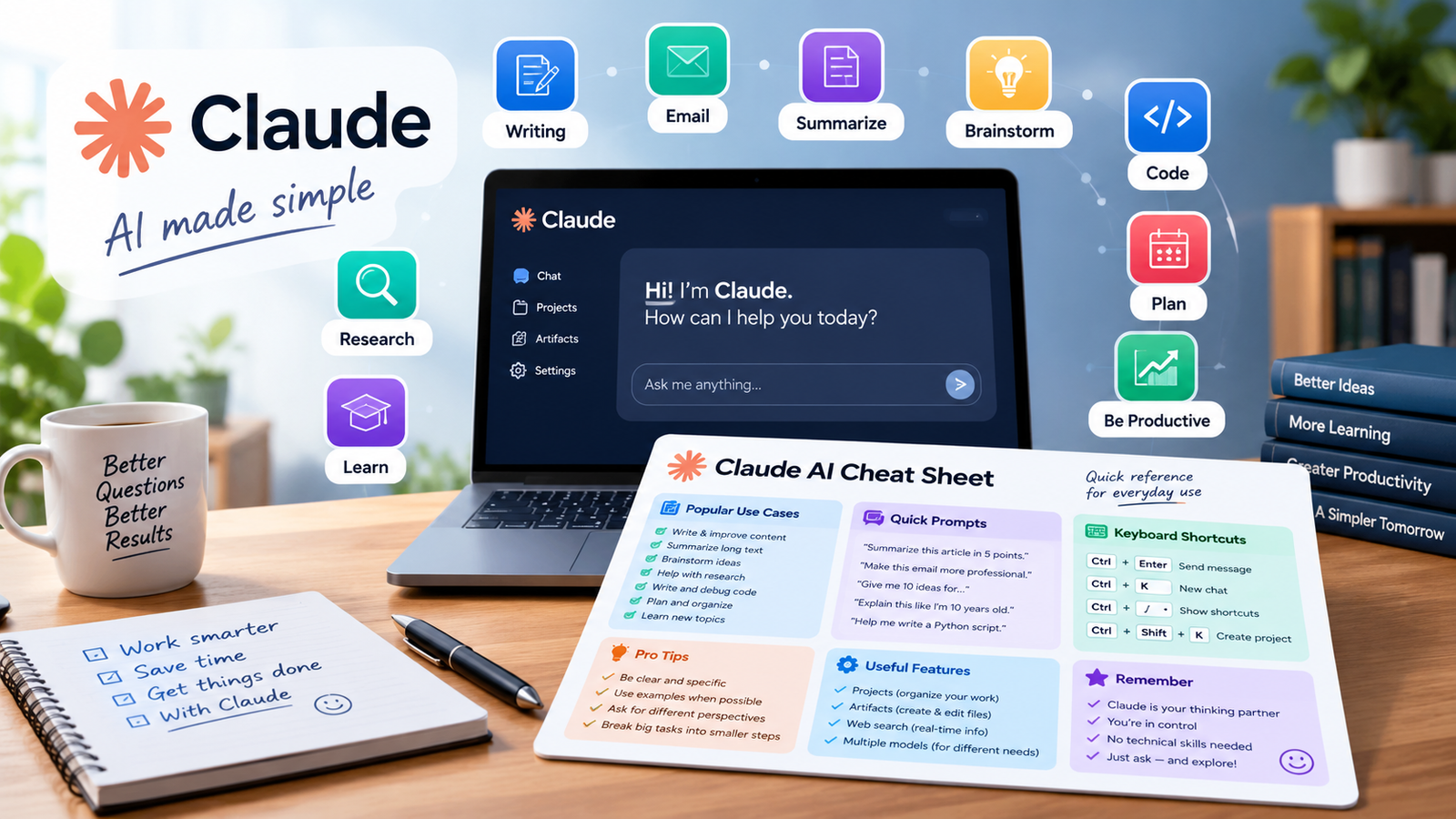
Claude AI Cheat Sheet: A Complete Guide for Everyday People (With Prices in $)
Claude AI is an artificial intelligence assistant created by Anthropic that offers varying model sizes, including Opus, Sonnet, and Haiku, to balance speed, cost, and reasoning power. Users can access Claude through free or paid subscription tiers as well as a pay-as-you-go API.
The platform supports specialized tools such as Projects for organized workspaces, Artifacts for generating interactive outputs, and Model Context Protocol connectors for integrating external applications. Structured prompt formulas, custom skills, and advanced coding features help users optimize everyday writing, analysis, and development tasks.
For my first three months with Claude, I used it like a search box. I typed a question, read the answer, and closed the tab. One weekend a friend sat next to me and opened his account. He had a Project for each client, a saved set of rules, and Gmail connected so Claude could read his emails. I had one long chat with 200 messages in it, and I kept scrolling up to find old answers.
That was the day I started writing down what Claude can really do. This Claude AI cheat sheet is the cleaned-up version of those notes. I wrote it for normal people, not engineers. If you can send a text message, you can use everything here.
You will learn which Claude model to pick, how to write a prompt that works the first time, what each feature does in simple words, and what everything costs in dollars.
What Is Claude AI?
Claude is an AI assistant made by a company called Anthropic. You talk to it in plain language, and it answers. You can use it on a website, on a phone app, or on a computer app.
People often call it a chatbot, but that undersells it. Claude can read a PDF you upload, fix a spreadsheet, write an article, build a small working tool, and connect to apps like Gmail and Google Calendar. It can also write and run real software code if you use the right product.
Think of Claude as a very fast helper who knows a little about almost everything. It can still make mistakes, so you check the important parts yourself, just like you would check a new employee’s first reports.
Which Claude Model Should You Use?
Claude comes in three sizes. Each one trades speed and price against thinking power. Anthropic updates the version numbers often, so I will use the family names here: Opus, Sonnet, and Haiku.
| Model | Best for | Speed | Cost level |
|---|---|---|---|
| Opus | Hardest tasks, deep reasoning, long research | Slowest | Highest |
| Sonnet | Daily use, writing, editing (the default pick) | Fast | Medium |
| Haiku | Quick, cheap, simple tasks | Fastest | Lowest |
Opus: The Deep Thinker
Pick Opus when the job is hard and a wrong answer costs you something. Examples: a long research question, a tricky legal-style document you want reviewed, or a big plan with many moving parts. It takes longer and uses more of your allowance.
Sonnet: The Everyday Worker
Sonnet is the one I use about 90% of the time. It writes well, edits well, and answers fast. If you do not know which model to pick, pick Sonnet.
Haiku: The Fast and Cheap One
Haiku is for simple jobs: sorting a list, rewriting one sentence, tagging 500 product names. It is quick and costs the least.
My rule is simple. Start with Sonnet. Move up to Opus only when Sonnet’s answer feels shallow. Move down to Haiku when the job is boring and repeats many times.
How Much Does Claude Cost? Plans and Prices in $
There are two ways to pay for Claude. The first is a monthly plan, which is what most people want. The second is the API, which developers use to build Claude into their own apps and pay for by the amount of text used.
Monthly Plans for Individuals and Teams
| Plan | Price per month | If billed yearly | Who it is for |
|---|---|---|---|
| Free | $0 | $0 | Trying Claude, light daily use |
| Pro | $20 | about $17 per month | Regular use: writing, research, files, Projects, Claude Code |
| Max 5x | $100 | n/a | Heavy users who keep hitting Pro limits (5 times Pro usage) |
| Max 20x | $200 | n/a | Full-day power users (20 times Pro usage) |
| Team Standard | $25 per seat | about $20 per seat | Small teams that need shared Projects and admin tools |
| Team Premium | $125 per seat | about $100 per seat | Teams that need more usage and Claude Code |
| Enterprise | Custom quote | Custom quote | Large companies |
A few things to know about this table:
- “Per seat” means per person on the team. Team plans usually need a minimum of 5 seats.
- All plans have usage limits. On Free and Pro, your limit resets in sessions, and there are weekly caps as well. “Max” does not mean unlimited. It means more room.
- Plans and prices change. Check the official pricing page at claude.com/pricing before you pay.
Which Plan Should You Pick?
- Just curious? Use Free. It costs nothing and does not run out into a trial.
- Use it most days for work or study? Pro at $20 is the sweet spot for most people.
- Hit the limit every day? Try Max 5x at $100. Most people never need Max 20x.
- Running a small business with staff? Look at Team Standard at $25 per seat.
API Prices (Pay as You Go)
If you build apps or run automated jobs, you pay by the “token.” A token is a small piece of a word. As a rough rule, 1,000 tokens is about 750 English words. Prices are quoted per 1 million tokens, with one rate for what you send in and a higher rate for what Claude writes back.
| Model | Input per 1M tokens | Output per 1M tokens |
|---|---|---|
| Haiku | $1 | $5 |
| Sonnet | $3 | $15 |
| Opus | $5 | $25 |
What does that mean in real life? A 1,500-word article is about 2,000 tokens of output. At the rates above, Claude writes that article for roughly:
| Model | Approx. cost of one 1,500-word article (output only) |
|---|---|
| Haiku | $0.01 (one cent) |
| Sonnet | $0.03 |
| Opus | $0.05 |
So even the top model costs about five cents for an article through the API. The Pro plan makes more sense for people who chat all day. The API makes more sense for people who run hundreds of jobs by script.
One more point: the Pro plan does not include API use. They are billed separately.
What Is the Best Prompt Formula for Claude?
A prompt is just the message you type. The better the message, the better the answer. Here is the formula I use every day:
Role → Task → Context → Constraints → Format
| Part | What it means | Example |
|---|---|---|
| Role | Who Claude should act as | “Act as a friendly career coach.” |
| Task | What you want done | “Review my resume.” |
| Context | What Claude needs to know | “I am applying for a nurse manager job. I have 8 years of floor experience.” |
| Constraints | Rules and limits | “Keep it under 300 words. No fancy words.” |
| Format | How the answer should look | “Give me 5 bullet points, then a rewritten summary.” |
A Weak Prompt vs. a Strong Prompt
Weak: “Write this for me.”
Strong: “Act as a senior marketing editor. Rewrite the email below for busy shop owners who have never used our app. Keep it under 120 words and use simple words. Give me three subject lines and then the email.”
The strong one takes about 30 seconds longer to type. It saves me many minutes of fixing.
Roles, Tasks, and Formats You Can Copy
| Roles | Tasks | Formats |
|---|---|---|
| Marketing expert | Write a blog post | Plain text |
| Data analyst | Create a strategy | Table |
| Senior developer | Debug code | JSON |
| Career coach | Analyze data | CSV |
| Financial advisor (for education, not advice) | Build a presentation | Bullet points |
| UX researcher | Review a document | Step by step |
Mix one from each column. “Act as a data analyst, analyze the sales numbers I pasted, and give me a table” works well.
Prompting Techniques That Make Answers Better
You do not need all of these. Learn two or three and you will notice a big change.
Role Playing
Give Claude a job title. It changes the tone and the depth of the answer.
Add Examples
Show Claude one or two samples of what you want. It copies the pattern.
Step by Step
Say “Think through this step by step.” Claude works through the problem in order, and the answer is often more correct.
Chaining
Do not ask for everything in one go. Ask for an outline first. Then ask for the draft. Then ask Claude to review its own draft and improve it.
Tree of Thought
Ask Claude to look at three different ways to solve a problem and then pick the best one.
Style
Name the tone: plain, formal, friendly, short. My favorite combo is Role plus Examples plus Step by Step.
Zero-Shot, One-Shot, and Few-Shot Prompts
These three terms sound technical, but they only describe how many examples you give.
| Type | Examples given | Sample prompt |
|---|---|---|
| Zero-shot | None | “Write me 15 CTAs about [topic].” |
| One-shot | One | “Write me 15 CTAs about [topic]. Here is an example: [your example].” |
| Few-shot | Three to five | “Write me 15 CTAs about [topic]. Here are 3 examples: [ex1] [ex2] [ex3].” |
The rule: more examples, better output. If a result feels flat, add two more examples and run it again.
Question Types for Learning Faster
If you are new, try different kinds of questions and see which gives you the best answer.
| Question type | What it does | Example |
|---|---|---|
| Open-ended | Broad exploration | “What should I know about index funds?” |
| Multiple choice | Forces a specific answer | “Which is best for me: A, B, or C?” |
| Fill in the blank | Gives you a complete template | “Complete this email: Dear ___, …” |
| Comparative | Compares two things | “Compare X vs Y.” |
| Scenario | Sets a situation | “Imagine you are my boss…” |
| Instructional | Teaches a skill | “Explain how to…” |
| Feedback | Improves your work | “Review this and improve it.” |
Starter Prompts I Use Every Week
- “Explain [topic] like I am 10.”
- “Compare [X] vs [Y] in a table.”
- “Rewrite this to be more [tone].”
- “Find 5 problems with this document.”
- “Create a step-by-step plan for [goal].”
- “Summarize this in 3 bullet points.”
- “Debug this code and explain the fix.”
- “Write [format] about [topic] for [audience].”
What Are Claude Projects?
A Project is a folder with a brain. You make one for each client, class, or goal. Inside it you can upload files, write custom instructions, and keep every related chat in one place.
Here is what you get:
- Chats are sorted by topic or client.
- Uploaded files become shared knowledge for every chat in that Project.
- Custom instructions apply to all chats inside, so you never repeat yourself.
- Team plans can share a Project with coworkers.
- You can pin the important conversations.
Real example: I have a Project for a food blog. I uploaded the brand voice guide and a list of past posts. Now every new chat already knows the tone, so I just say “Write a post about air fryer chicken,” and it sounds like the blog.
What Are Claude Artifacts?
When Claude builds something for you, like a document, a web page, a chart, or a small tool, it shows up in its own panel next to the chat. That panel is called an Artifact.
You can make:
- Interactive code and small apps
- Documents and reports
- Charts and visual explainers
- Web pages (HTML), diagrams, and SVG images
Artifacts can be shared and published as a link. Some can also connect to tools like Asana, Slack, and Calendar, and some can save data between sessions.
Real example: I asked Claude, “Build me a monthly budget calculator with three sliders.” Ten minutes later I had a working page I could open on my phone.
What Are MCP and Connectors?
MCP stands for Model Context Protocol. The name is scary, but the idea is simple. It is a standard plug that lets Claude connect to outside tools.
With connectors, Claude can reach apps such as Google Drive, Gmail, Google Calendar, Slack, GitHub, Figma, Asana, PostgreSQL, and Brave Search. Developers can also build their own connectors.
Setup for the common ones is easy. You click Connect, sign in, and approve. You do not need an API key for the built-in ones.
A safety note: connect only the tools you need, and only to services you trust. Read the permission screen before you click approve.
What Is Claude Code?
Claude Code is a coding assistant that works inside your computer’s terminal. It is made for people who build software, but even a beginner can use it for small scripts.
It can:
- Read an entire project, not just one file
- Write, edit, test, and deploy code
- Run commands on your computer
- Help with commits, pull requests, and branches
- Use connectors while it works
- Send helper agents to do tasks in parallel
It also reads a file called CLAUDE.md, where you store your project notes and rules. That file is the project’s memory.
To install it, developers run npm install -g @anthropic-ai/claude-code and then type claude. Claude Code is included with paid plans like Pro. Always review any code it writes before you use it on something important.
What Are Skills and Hooks?
Skills are saved instruction folders. If you keep explaining the same process to Claude, turn it into a Skill once. They are written in simple Markdown text, they start on their own when the task matches, and you can share them across a team. Some are built in and you can add your own.
Hooks are automatic actions that fire at certain moments.
| Hook | When it runs | Example use |
|---|---|---|
| PreToolUse | Before Claude uses a tool | Block edits to a protected file |
| PostToolUse | After Claude uses a tool | Run a check for errors |
| Stop | When Claude finishes | Validate the final output |
| SubagentStop | When a helper agent finishes | Check the helper’s work |
Beginners can skip Hooks at first. Skills are the easier win.
Which Claude Products Can You Use?
| Product | What it does | Where |
|---|---|---|
| Claude.ai | Web chat | Any browser |
| Desktop app | Chat plus file and app access | Mac and Windows |
| Mobile app | Chat on the go | iOS and Android |
| Claude Code | Coding agent | Terminal |
| Cowork | Desktop task automation | Desktop |
| API | Build your own apps | Developers |
| Claude in Chrome | Browsing agent | Chrome |
| Claude in Excel | Spreadsheet agent | Excel |
Free Courses From Anthropic
Anthropic runs free learning courses. The list I found includes:
- Claude 101 (the basics)
- Claude Code in Action
- API Fundamentals
- Prompt Engineering Tutorial
- Real World Prompting
- Tool Use with Claude
- MCP Servers (build from scratch)
- AI Fluency for Students
Some offer certificates. Course lists change, so check Anthropic’s learning pages for what is open now.
Pro Tips and Shortcuts
- Use a Project for each client or topic.
- Upload reference files as Project knowledge.
- Chain your work: first draft, then ask Claude to review it, then improve it.
- Use simple tags to organize a long prompt, like
<document>for the text and<rules>for the rules. - Ask for the output shape you need: a table, a list, or JSON.
- Always read the final answer yourself. Check names, numbers, and dates.
Common Mistakes Beginners Make
- Typing short, vague prompts. “Help me with marketing” gets a vague answer.
- Using one giant chat for everything. Start a new chat for each topic, or use a Project.
- Paying for Max too early. Try Pro first for a month.
- Trusting every fact. Claude can sound sure and still be wrong. Verify anything important.
- Skipping examples. One good example beats three lines of explanation.
Frequently Asked Questions
Is Claude free?
Yes. The Free plan costs $0 and has daily limits. Pro starts at $20 per month, or about $17 per month if you pay yearly.
What is the difference between Claude Pro and Max?
Pro is the standard paid plan. Max gives you much more usage. Max 5x costs $100 per month and Max 20x costs $200 per month. Most people do fine on Pro.
Do I need to know how to code?
No. Chat, Projects, and Artifacts need no code. Claude Code is the only part made for people who build software.
Does the Pro plan include API access?
No. The API is billed separately by tokens.
Which model is best for writing?
Sonnet is the best starting point for writing. Use Opus for harder thinking tasks and Haiku for small, repeat jobs.
How long should my prompt be?
As long as it needs to be. Role, task, context, constraints, and format usually fit in one short paragraph.
Final Thoughts
You do not need to learn everything in this Claude AI cheat sheet in one day. Here is the order I would follow if I started again:
- Learn the prompt formula this week.
- Make one Project next week.
- Connect one tool the week after.
- Try Pro for one month if the Free limits slow you down.
Within a month, you will use Claude in a very different way from the way I did in my first three months. Save this guide and come back to it when you get stuck.
Prices in this guide were gathered from public pricing reports and can change. Check claude.com/pricing for the latest numbers before you buy.